📌 Key Takeaways
- •SATA SSD: Max speed ~550 MB/s. This is already a massive upgrade from HDD (100 MB/s). Boot times drop from 1-2 minutes to 15-20 seconds. For everyday tasks like web browsing, Office, and streaming, SATA is plenty.
- •NVMe SSD: Speeds up to 3500 MB/s (PCIe 3.0) or 7000 MB/s (PCIe 4.0). This shines for large file transfers (e.g., video editing, copying big files) and heavy multitasking. For most users, the difference between SATA and NVMe is subtle in daily use, but if you work with large datasets or want the fastest possible load times, NVMe is worth it.
Is Your Old Laptop Worth Upgrading? Here's How to Decide
You sit down to open a file, and your laptop takes a full minute to boot. Then another 30 seconds to open Chrome. Sound familiar? Before you toss that old machine in a drawer, consider this: a simple SSD and RAM upgrade can breathe new life into it for a fraction of the cost of a new laptop. In Hong Kong, where space is tight and budgets are squeezed, upgrading is often the smartest move.
But not every old laptop is worth the investment. The key is identifying the bottleneck. Let's break it down.
How to Identify the Bottleneck: CPU, SSD, or RAM?
Step 1: Check CPU Usage
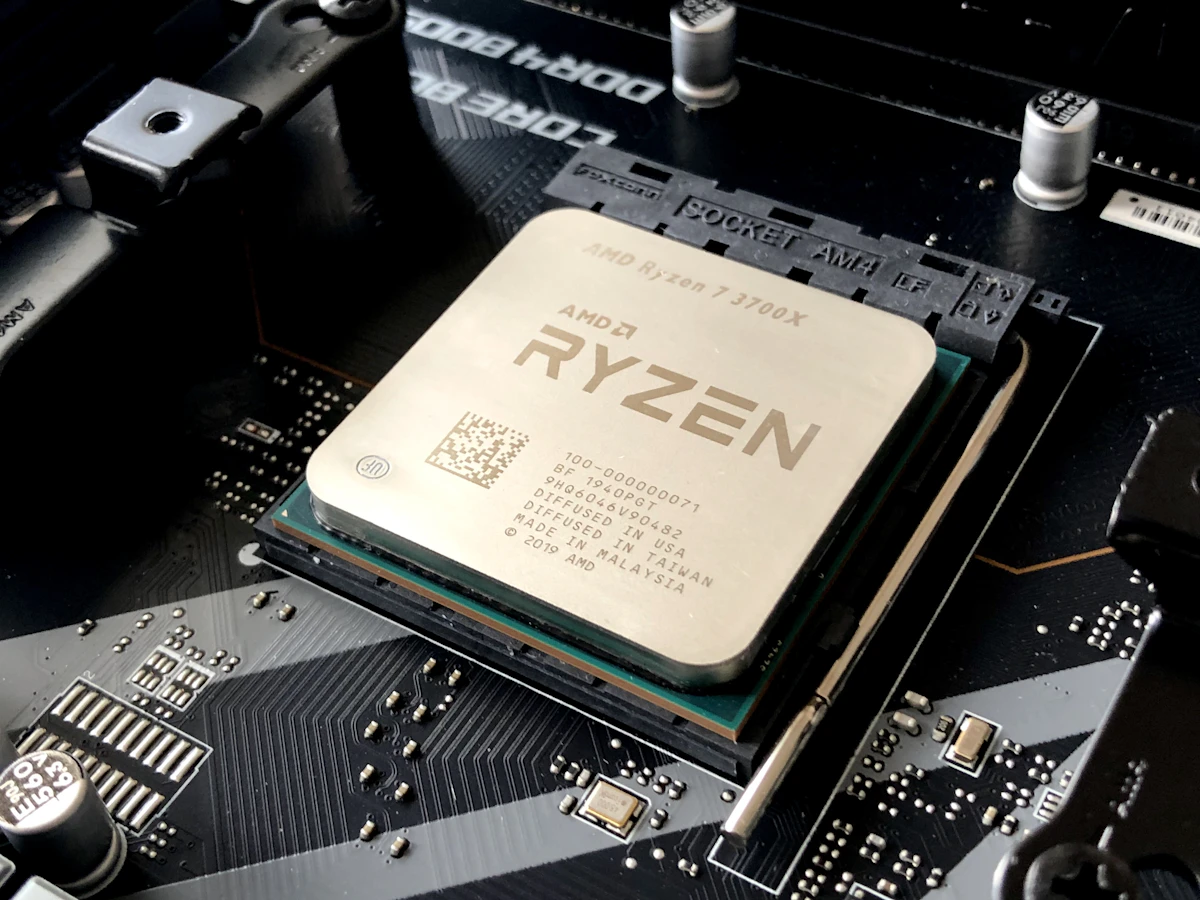
Open Task Manager (Ctrl+Shift+Esc on Windows) and go to the Performance tab. If your CPU is constantly at 100% while doing basic tasks like browsing or typing, your processor is the bottleneck. Upgrading an old CPU usually requires a new motherboard and laptop, so in that case, a new laptop may be more cost-effective. However, if your CPU is from the Intel Core i5 (6th gen or later) or AMD Ryzen 3 series, it's still capable.Step 2: Check RAM Usage
If your RAM usage is consistently near 100% (e.g., 8GB is maxed out with multiple tabs open), adding more RAM can make a huge difference. For most users, 16GB is the sweet spot. If your laptop supports it, upgrading from 8GB to 16GB costs around HK$200-400.Step 3: Check Disk Activity
If your disk usage is at 100% while the system feels sluggish, you likely have an old HDD. Switching to an SSD is the single most impactful upgrade you can make. Even an old laptop with a SATA SSD will feel snappier.Quick Diagnosis Tool
Download CrystalDiskInfo to check your drive's health. A failing drive needs immediate replacement.Upgradeability by Model: MacBook vs. ThinkPad vs. Others
MacBooks (Pre-2012 vs. 2012-2015 vs. Newer)
Older MacBooks (pre-2012) often have upgradable RAM and HDD. Models from 2012-2015 have soldered RAM but replaceable SSDs (proprietary connector). Newer MacBooks (2016+) have everything soldered – no upgrades possible. If you have a 2015 MacBook Pro, you can swap the SSD for a faster NVMe with an adapter (cost: HK$300-500 for adapter + SSD). But if you have a 2016+ model, your only option is external storage.ThinkPad (e.g., T480, X260)
ThinkPads are the modular champions. Most have two RAM slots (non-soldered) and a standard M.2 NVMe slot. Upgrading a ThinkPad T480 to 16GB RAM and a 1TB NVMe costs around HK$600-800 and can make it feel like a new machine. Many older ThinkPads also have a 2.5" SATA bay, so you can dual-boot or add extra storage.Dell XPS / HP Spectre
These ultrabooks often have soldered RAM but replaceable SSDs. Check your model on iFixit or YouTube before buying parts.Gaming Laptops (e.g., ASUS ROG, Lenovo Legion)
Most gaming laptops have user-upgradable RAM (two slots) and two M.2 slots. Some even allow CPU upgrades (rare). These are highly upgrade-friendly.SATA vs. NVMe: The Real Performance Difference
Many people ask: "Is NVMe worth it over SATA?" The answer depends on your workload.
- SATA SSD: Max speed ~550 MB/s. This is already a massive upgrade from HDD (100 MB/s). Boot times drop from 1-2 minutes to 15-20 seconds. For everyday tasks like web browsing, Office, and streaming, SATA is plenty.
- NVMe SSD: Speeds up to 3500 MB/s (PCIe 3.0) or 7000 MB/s (PCIe 4.0). This shines for large file transfers (e.g., video editing, copying big files) and heavy multitasking. For most users, the difference between SATA and NVMe is subtle in daily use, but if you work with large datasets or want the fastest possible load times, NVMe is worth it.
Need a laptop repair expert?
Free diagnosis · Transparent pricing · No fix, no fee · 180-day warranty
Step-by-Step Upgrade Guide (With Precautions)
Tools You'll Need
- Small Phillips head screwdriver (#0 or #00)
- Plastic spudger or guitar pick (to pry open casing)
- Anti-static wrist strap (optional but recommended)
- External USB enclosure for cloning old drive
Step 1: Back Up Your Data
Before touching anything, back up your important files to an external drive or cloud. Use tools like Macrium Reflect (free) for cloning.Step 2: Power Down and Remove Battery
Turn off the laptop, unplug the charger, and remove the battery if possible (many ultrabooks have built-in batteries – disconnect the internal cable). Hold the power button for 10 seconds to drain residual charge.Step 3: Access the RAM and SSD Compartments
Flip the laptop over. Look for a removable panel (often held by one screw). If your laptop has a single bottom cover, remove all screws (keep them organized!). Use a spudger to gently pry the cover off.Step 4: Install RAM
Locate the RAM slots. If you're adding a second stick, insert it at a 45-degree angle and press down until the clips click. If replacing, remove old sticks by spreading the clips apart. Make sure the new RAM is compatible (DDR3 vs DDR4 vs DDR5, speed, voltage). Use sites like Crucial.com or Kingston's compatibility tool.Step 5: Replace SSD (Cloning vs. Fresh Install)
Option A: Clone Your Old Drive
- Connect the new SSD via USB enclosure.
- Use cloning software (e.g., Samsung Data Migration, Macrium Reflect) to copy the entire old drive to the new one.
- Swap the drives: remove old drive, install new one.
Option B: Fresh Install
- Install Windows from a USB bootable drive (use Media Creation Tool).
- You'll need a product key (usually embedded in BIOS).
Step 6: Reassemble and Test
Put the cover back, insert battery, and power on. If you cloned the drive, it should boot normally. Check BIOS to confirm both RAM and SSD are detected. Run a quick performance test (e.g., CrystalDiskMark).
Precautions
- Static electricity: Touch a metal surface before handling components. Use an anti-static wrist strap if possible.
- Screws: Keep them in a magnetic tray or label their positions.
- Compatibility: Double-check RAM type (e.g., DDR4 3200MHz) and SSD interface (SATA vs NVMe).
- Warranty: Upgrading yourself may void warranty on some models. If unsure, bring it to a professional.
Cost Reference in Hong Kong (HKD)
| Component | Budget Option | Mid-Range | Premium |
|-----------|---------------|-----------|---------|
| SATA SSD 500GB | HK$250-350 | HK$350-450 | HK$450-600 |
| NVMe SSD 500GB | HK$300-400 | HK$400-600 | HK$600-900 |
| RAM 8GB DDR4 | HK$100-150 | HK$150-200 | HK$200-300 |
| RAM 16GB DDR4 | HK$200-300 | HK$300-400 | HK$400-600 |
| Installation labor (shop) | HK$200-400 | HK$400-600 | HK$600+ |
*Prices as of 2025 from local shops and online retailers (e.g., Jumbo, Centralfield, Amazon HK).
FAQ
Q: How do I know if my laptop supports NVMe?
A: Check the laptop's manual or look up the model on the manufacturer's site. If it has an M.2 slot, it may support both SATA and NVMe. You can also use CPU-Z or HWiNFO to see available slots.Q: Is it worth upgrading a 10-year-old laptop?
A: If the CPU is at least Intel 4th gen or AMD Ryzen 1000 series, and you only need it for basic tasks (web, Office, video streaming), yes. But if the CPU is weak (e.g., Intel Atom or Celeron), consider replacing the whole laptop.Q: Can I upgrade the RAM in a MacBook Air?
A: MacBook Air models from 2010-2017 have soldered RAM, so no. Only the 2010-2012 13-inch MacBook Pro (non-Retina) has upgradable RAM.Q: How long does an SSD upgrade take?
A: DIY: 30 minutes to 1 hour (plus cloning time). Professional: 20-30 minutes. At Laptop King, we can do it while you wait.Need Help? We're Here for You
Not confident doing it yourself? Or want to ensure compatibility and avoid costly mistakes? At Laptop King 香港電腦筆記本維修, we've been upgrading laptops for over 15 years. We offer fast, reliable service at our Shek Mun store.
Contact us today:
- WhatsApp: +852 6558 6806
- Call: +852 2186 8010
- Visit: 1209 Dali Plaza, Sha Tin (Shek Mun MTR Exit C)
- Book online: 硬件升級服務
Don't let a slow laptop slow you down. Get a free consultation and quote today.
Need Professional Laptop Repair?
Laptop King has 15+ years of repair experience in Shek Mun, Sha Tin. Free diagnosis, transparent pricing, no fix no fee. 180-day warranty for your peace of mind.